Here's the short version: money in Meteon Run moves through three layers — a crypto exchange, your Meteon Garage Wallet (on Polygon), and your in-game account — and depositing or withdrawing simply means walking through those layers in order. Everything happens on the Polygon blockchain, and every transfer costs a small network fee ("gas"). Gas is paid in a token called POL by default; Send to Game and MTO staking also let you pay it in GMTO or MTO (as displayed in August 2026), while NFT purchases and Send Token need a POL balance.

This guide walks through deposits (exchange → Garage Wallet → game account), withdrawals (the reverse), and cashing out, step by step, with screenshots from the official Meteon Garage marketplace (English UI, captured August 2026). Every figure — fees, minimum withdrawal, caps — is an example as displayed at the time of capture, and can change with market rates or future updates.

How Money Flows in Meteon Run — Exchange, Garage Wallet, and Game Account

The GMTO you earn in the game doesn't land on an exchange by itself. In between sits the "Meteon Garage Wallet," a wallet on Polygon, and your funds travel back and forth across these three layers:

1

Crypto exchange

Your on-ramp and off-ramp between regular money and crypto. GMTO and MTO trade on the overseas exchanges that have listed them; an exchange in your region that supports fiat is what you'll use to convert to and from your local currency.

2

Meteon Garage Wallet (Polygon)

A Polygon wallet generated automatically when you log in to Meteon Garage with the same account you use in the app. It holds GMTO, MTO, USDT and POL, and serves as the hub for buying NFTs, sending tokens into the game, and sending them out to an exchange.

3

Game account (in-game GMTO)

Your GMTO balance inside the app. This is where the GMTO you earn by running piles up, and where repair costs are paid from. The "Send GMTO" menu in Garage moves GMTO between here and your Garage Wallet in either direction.

Deposits go 1 → 2 → 3; withdrawals go 3 → 2 → 1. Here are the main conditions as shown on the Meteon Garage screens:

0.5%Withdrawal fee (Send to Wallet: game account → Garage Wallet)
≈ $10Minimum withdrawal (shown as a GMTO amount; 401,606.43 GMTO at the time of capture)
5,000,000 GMTODaily Withdrawal Limit
30,000,000 GMTOMonthly Withdrawal Limit
2–5 minTypical time for Send to Game (Garage Wallet → game account) to be credited
POLGas token (Polygon Mainnet / Chain ID 137)

Figures as displayed on Meteon Garage in August 2026. The GMTO equivalent of the minimum withdrawal changes daily with the market rate, and the fee rate, caps and crediting times may change with future updates. Always check the current conditions on the Meteon Garage screens themselves.

Before You Start: Your Garage Wallet Address and POL for Gas

First, open Meteon Garage (market.meteornrun.io), choose "Wallets" from the side menu, and find your Garage Wallet address. The most important warnings for any transfer are right at the top of that page:

  • Polygon Mainnet / Chain ID: 137 — the network this wallet runs on (Polygon only)
  • Supported tokens: GMTO / MTO / USDT / POL — four supported tokens
  • "Sending from other chains may result in permanent loss of funds" — send on any other chain and you may lose the assets for good
Meteon Garage Wallets page showing the Polygon Mainnet (Chain ID 137) notice, the Meteon Garage Wallet address, GMTO/MTO/USDT/POL balances, and the Send and Polygonscan buttons
The Wallets page: the Polygon-only notice at the top, your Garage Wallet address and balances in the middle, and the Send button below.
Meteon Garage Wallets page after tapping Copy, with the wallet address copied and a Copied! toast displayed
Tap "Copy" and the address is copied with a "Copied!" confirmation. Always paste this copied address into the destination field.

Tapping "Copy" copies your address (it starts with 0x). Always copy and paste this address into the destination field — never type it by hand. If a balance doesn't update, tap "Update Balances" or wait a moment and reload the page.

Keep a little POL on hand for gas

Every transaction on Polygon costs a small amount of gas, paid in POL. Garage's own "How to Buy" guide spells it out: "POL is required for every transaction." Send to Game (and MTO staking) does let you pay gas in GMTO or MTO instead, but for sending tokens out to an exchange (Send Token) it's safest to assume you need a POL balance. For reference, the Send to Game screen showed a gas estimate of roughly 1.4 POL at the time of capture (it moves with market conditions and network congestion); the Send Token dialog doesn't display a gas estimate, so we couldn't confirm its figure. Keeping enough POL for a few transactions gives you a comfortable margin.

Your login account is the key to your Garage Wallet: the Garage Wallet has no seed phrase — per the whitepaper, you recover it through your social login (Google / Apple), the same account you use in the app. If that account is compromised, the wallet is too, so be sure to turn on two-factor authentication (2FA). You can also connect an external wallet such as MetaMask via "Connect New Wallet," but this guide assumes you're using the Garage Wallet.

Deposit, Part 1: Sending GMTO, USDT or POL from an Exchange to Your Garage Wallet

Whether it's payment for an NFT sneaker (USDT/MTO/GMTO), POL for gas, or GMTO to use in the game, funds come in through your exchange's "Withdraw" screen, addressed to your Garage Wallet. The screens differ from exchange to exchange, but the steps are always the same.

1

Open the exchange's withdrawal screen and pick the token

Go to the withdrawal page for the token you want to send (GMTO, MTO, USDT or POL).

2

Choose "Polygon" as the network (chain)

The withdrawal network must be Polygon (some exchanges label it "Polygon POS" or "MATIC"). If Polygon isn't offered, don't send.

3

Paste your Garage Wallet address as the destination

Paste the address you copied on the Wallets page and visually check the first and last few characters.

4

Send a small test amount → confirm it arrived → send the rest

On your first transfer, send a small amount, confirm it shows up in the balance on the Garage Wallets page, and only then send the full amount.

MTO and GMTO have been listed on overseas crypto exchanges (MTO on XT.com, GMTO on LBANK — availability changes, so check the exchanges and the official website). Since you usually can't buy them directly with your local currency, the common route has two stages: buy crypto on an exchange in your region, send it to an overseas exchange, swap it for GMTO or MTO, and then send that to your Garage Wallet.

Pick the wrong network and there's no way back. The same "USDT" exists on several networks — Ethereum (ERC-20), BNB Chain, Tron and more. Your Garage Wallet is Polygon-only, and assets sent on any other network may, as the on-screen warning says, be lost permanently. Double-check the network name before confirming the withdrawal.

Deposit, Part 2: Send to Game — Moving GMTO into Your Game Account

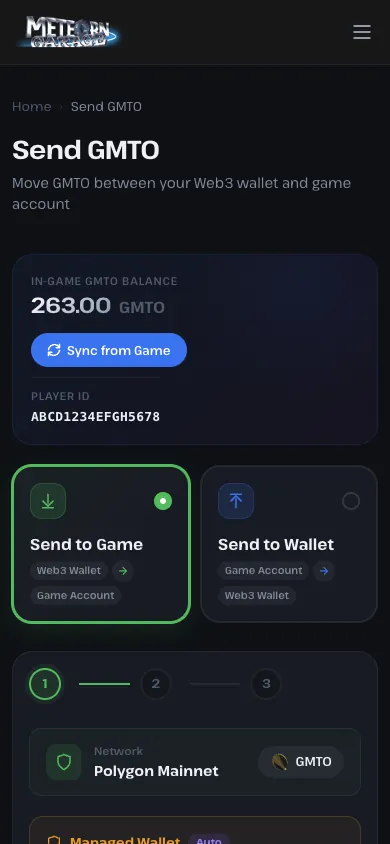
To use the GMTO in your Garage Wallet inside the game (for sneaker repairs, for example), open "Send GMTO" in the side menu and choose "Send to Game (Web3 Wallet → Game Account)." The top of the page shows your "IN-GAME GMTO BALANCE" and "PLAYER ID," and "Sync from Game" pulls the latest balance from the app.

Meteon Garage Send GMTO page with Send to Game selected: Polygon Mainnet, Managed Wallet, amount field, gas payment options (GMTO/MTO/POL) and the Deposit to Game button
The Send to Game form. Network, wallet, amount and the gas payment method are all on one screen.
Send to Game with 100 entered in the amount field, Pay gas in POL selected, and the notice GMTO will be credited within 2-5 minutes at the bottom
With an amount entered (100 GMTO in this example). The notes at the bottom say "credited within 2–5 minutes" and "make sure you have enough POL."
1

Enter amount

The Network is fixed to Polygon Mainnet and the token to GMTO. The balance you can send from your "Managed Wallet (Auto)" is shown as Available GMTO; type the quantity in the Amount field (or tap "MAX" for everything).

2

Confirm — choose how to pay gas

Under "Network fee (gas)," pick Pay gas in GMTO, MTO or POL (POL is the default). At the time of capture the estimates were roughly 803 GMTO, 4.09 MTO or 1.38 POL; any option you can't cover is marked "Insufficient," and you can't proceed until the balance you've chosen covers the gas. Then tap "Deposit to Game."

3

Auto credited — in your game account within 2–5 minutes

As the screen says, "GMTO will be credited within 2-5 minutes." If the app still shows the old balance, tap "Sync from Game" or restart the app. "History" at the bottom of the page lists your transfers.

Send GMTO moves GMTO only. USDT, MTO and POL can't be sent to your game account — they stay in your Garage Wallet for NFT purchases, MTO staking and gas.

Withdraw, Part 1: Send to Wallet — From Your Game Account to Your Garage Wallet

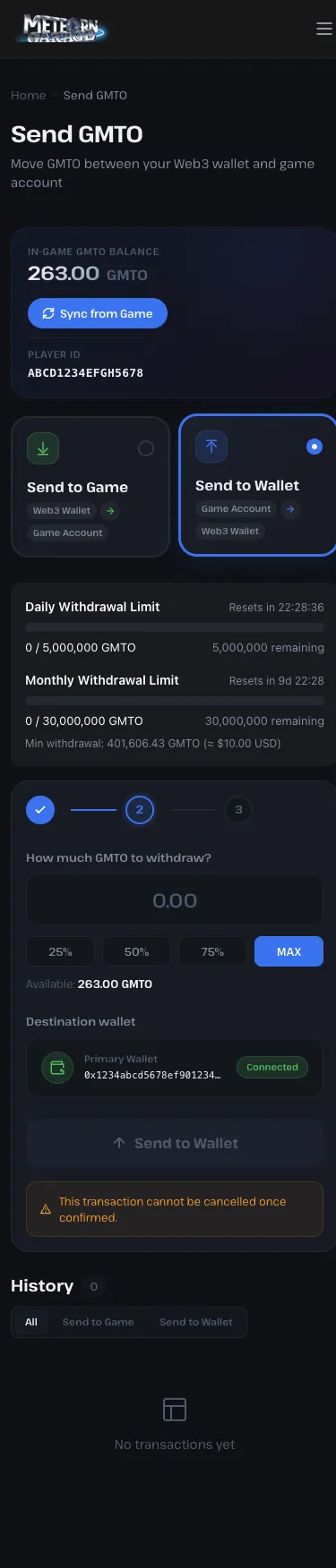
To get the GMTO you've earned in the game to an exchange, first go to "Send GMTO" → "Send to Wallet (Game Account → Web3 Wallet)" and withdraw from your game account to your Garage Wallet. This is the heart of "withdrawing" in Meteon Run — the fee, minimum and caps are all shown on this one screen.

Meteon Garage Send GMTO page with Send to Wallet selected, showing Daily Withdrawal Limit 5,000,000 GMTO, Monthly Withdrawal Limit 30,000,000 GMTO, a minimum withdrawal of about 10 dollars, and the amount field
The Send to Wallet screen. The daily and monthly caps and the minimum withdrawal (≈ $10) are shown at the top.
Send to Wallet after tapping 25%: Withdrawal amount 65.75 GMTO, Fee (0.5%) 0.33 GMTO, You will receive 65.42 GMTO, with the destination fixed to the Primary Wallet
After tapping "25%." The amount you'll receive after the 0.5% fee is calculated automatically, and the destination is fixed to your Primary Wallet.

The three conditions at the top of the screen (as displayed in August 2026) are Daily Withdrawal Limit 5,000,000 GMTO (per day, with a "Resets in" countdown), Monthly Withdrawal Limit 30,000,000 GMTO (per month), and Min withdrawal 401,606.43 GMTO (≈ $10.00 USD) — the minimum is US$10 worth of GMTO, so the GMTO figure changes daily with the market rate.

1

Enter the amount (25% / 50% / 75% / MAX)

Under "How much GMTO to withdraw?", type a quantity or use the 25% / 50% / 75% / MAX buttons to pick a share of your in-game balance (Available).

2

Check the breakdown (Fee 0.5%)

The screen shows "Withdrawal amount," "Fee (0.5%)" and "You will receive" automatically. In our capture, 65.75 GMTO carried a 0.33 GMTO fee for 65.42 GMTO received (this example is below the minimum withdrawal, so we didn't try sending it — by the conditions shown on screen, it wouldn't be accepted).

3

Confirm the destination and tap "Send to Wallet"

The "Destination wallet" is fixed to your Primary Wallet (your Garage Wallet) — you can't enter an arbitrary address. Once you've checked it, tap "Send to Wallet." Note the on-screen warning: "This transaction cannot be cancelled once confirmed."

Withdraw, Part 2: Sending from Your Garage Wallet to an Exchange (Send Token)

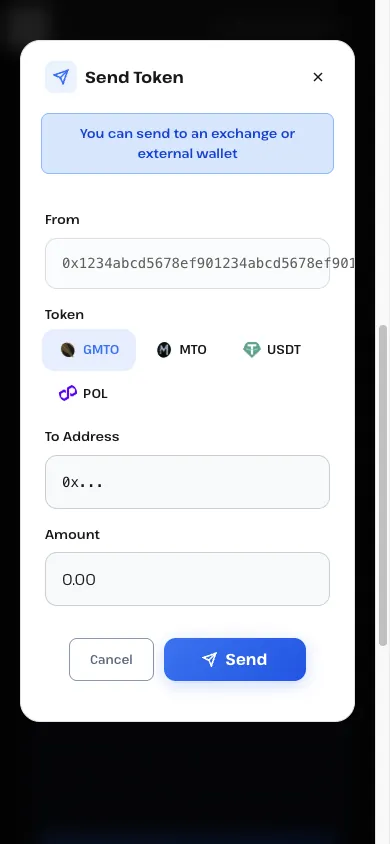
To move the GMTO now sitting in your Garage Wallet to an exchange, tap "Send" under WALLET OPERATIONS on the "Wallets" page to open the "Send Token" dialog. As it says — "You can send to an exchange or external wallet" — this works for external wallets too.

Meteon Garage Send Token dialog with From (your address), Token (GMTO/MTO/USDT/POL), To Address and Amount fields and a Send button
The Send Token dialog. Fill in three fields — Token, To Address and Amount — and tap Send.
1

Get a Polygon deposit address for GMTO from the exchange

On the receiving exchange, open the "Deposit" page for GMTO, select Polygon as the network, and display the deposit address (the exchange must support GMTO deposits on Polygon).

2

Fill in the Send Token dialog

Token = GMTO, To Address = the exchange's deposit address (copy & paste), Amount = the quantity. The From field is fixed to your Garage Wallet.

3

Tap "Send" (gas expected in POL)

Gas is expected to be paid in POL — Garage's "How to Buy" says "POL is required for every transaction," and the Send Token dialog shows no option to pay gas in another token — and the transaction is processed on Polygon. You can track its status via the "Polygonscan" button on the Wallets page.

4

Confirm arrival in the exchange's deposit history

Exchanges wait for a certain number of block confirmations before crediting your balance, so expect a delay of several minutes or more. Minimum deposit amounts are set by the exchange.

Desktop version of the Meteon Garage Send Token dialog with From, Token, To Address and Amount fields
The same dialog on desktop. The fields are identical to the mobile version.
A wrong To Address cannot be recovered. Blockchain transfers can't be reversed, and Meteon Garage doesn't advertise any way to return a mistaken transfer. Always copy & paste the address, check the first and last few characters, and on your first transfer send a small test amount and confirm it arrives before sending the rest.

Cashing Out: Selling GMTO on an Exchange for Your Local Currency

Meteon Garage has no built-in way to convert to regular money — that happens on the exchange side. Since GMTO generally can't be traded directly for your local currency, the typical route looks like this:

1

Sell GMTO on the overseas exchange

On the exchange where you deposited GMTO, sell it on a trading pair such as USDT. Small-cap tokens can be thinly traded, so selling a large amount at once may move the execution price significantly.

2

Swap into a crypto your regional exchange accepts and send it there

Convert the USDT (or other proceeds) into a crypto asset supported by an exchange in your region that offers withdrawals in your local currency, and send it to your account there. Supported coins and networks vary by exchange, so always check before sending.

3

Sell for your local currency and withdraw to your bank

Sell on the regional exchange for your local currency and withdraw to your linked bank account. Opening an exchange account usually requires identity verification (see the Getting Started guide).

A note on taxes: in many countries, gains from selling or swapping crypto assets may be taxable, and how tokens earned in a game are treated can differ from place to place and from case to case. Check your local tax authority's guidance or consult a local tax professional. This article is not tax advice. Also keep in mind that overseas exchanges may not be licensed or regulated in your country — using them is at your own risk.

Meteon Run Deposit & Withdrawal Fees, Limits and Timing at a Glance

Here's what we can tell from the Meteon Garage screens and typical exchange behavior for each of the four operations. "—" means nothing is shown on screen.

Operation Fee Minimum / Cap Typical time Gas
Deposit 1: Exchange → Garage Wallet The exchange's withdrawal fee Set by the exchange Usually minutes after Polygon confirmation (varies by exchange) Paid by the exchange
Deposit 2: Send to Game None shown (gas only) — (within your balance) 2–5 minutes Your choice of GMTO / MTO / POL
Withdraw 1: Send to Wallet 0.5% Min ≈ $10 / 5,000,000 GMTO per day / 30,000,000 GMTO per month
Withdraw 2: Garage Wallet → Exchange (Send Token) None shown (gas only) Watch the exchange's minimum deposit Polygon confirmation + exchange crediting (minutes or more) POL (expected; the dialog shows no other gas option)

Based on the Meteon Garage screens as displayed in August 2026. Fee rates, caps, minimums and crediting times may change with market rates or future updates. Always confirm the latest conditions on Meteon Garage and with each exchange.

Common Meteon Run Deposit & Withdrawal Mistakes — and What to Do

Mistake 1: You sent on a network other than Polygon. As the on-screen warning says, the assets are unlikely to come back, and Garage offers no recovery process. What to do: your only real option is to contact the sending exchange's support (recovery is not guaranteed). Prevention is the cure: confirm "Network = Polygon" before confirming the withdrawal, and send a small test amount first.
Mistake 2: Not enough POL — the option shows "Insufficient" and you can't send. If the balance you've chosen to pay gas from is empty, the send button stays disabled. What to do: send a small amount of POL to your Garage Wallet from an exchange. For Send to Game (and Staking), you can choose "Pay gas in GMTO / MTO" and cover gas from those balances instead.
Mistake 3: You're below the minimum withdrawal (≈ $10) or over the daily/monthly cap. Send to Wallet won't go through below "Min withdrawal." What to do: keep playing until your in-game balance exceeds the minimum (the GMTO figure moves with the market rate), then withdraw. If you've hit a cap, wait for the "Resets in" countdown to roll over.
Mistake 4: You typed the wrong To Address in Send Token. Because the destination for exchange transfers is free-form, a single wrong character sends your funds to a different address with no way to get them back. What to do: there's no fix after the fact — prevention is everything. Copy & paste the address, check the first and last characters, and send a small test amount before the real one.

Meteon Run Deposits & Withdrawals: FAQ

I used Send to Game, but the GMTO hasn't shown up in the game.
The screen says crediting takes 2–5 minutes. Wait a few minutes, then tap "Sync from Game" on the Send GMTO page or restart the app to refresh the balance. If it still doesn't appear, check whether the transaction is listed under "History" and whether it failed to go through because of insufficient gas.
Can I withdraw every day? Is there a limit on the number of withdrawals, or an identity check?
The conditions shown on the Send to Wallet screen are a minimum of ≈ $10, 5,000,000 GMTO per day and 30,000,000 GMTO per month (as of August 2026), and within those you can withdraw daily. Neither the screen nor the whitepaper mentions a cap on the number of withdrawals per day or an identity verification (KYC) requirement, so we won't claim either way — check the Meteon Garage screens and official announcements for the latest.
Can I convert GMTO straight into my local currency?
Not inside Meteon Garage. The usual path is: sell GMTO on an overseas exchange → swap into a crypto asset your regional exchange supports and send it there → sell for your local currency and withdraw to your bank. Any profit may be taxable, so check with your local tax authority or a tax professional about how it's treated where you live.